
A custom QR code can fit more naturally into a sign, menu, package, or other branded material. QR Pulse’s Google Play listing describes design options such as colors, logos or social icons, patterns, corners, frames, and short calls to action. The available options may vary by platform, so check the current store listing for your device. See the Google Play listing and App Store listing.
Choose the destination first
Decide what the code should open before you work on its appearance. Use the correct menu, website, contact details, or social page, then scan the finished code with another device. Check it at the size and in the lighting where people will use it.
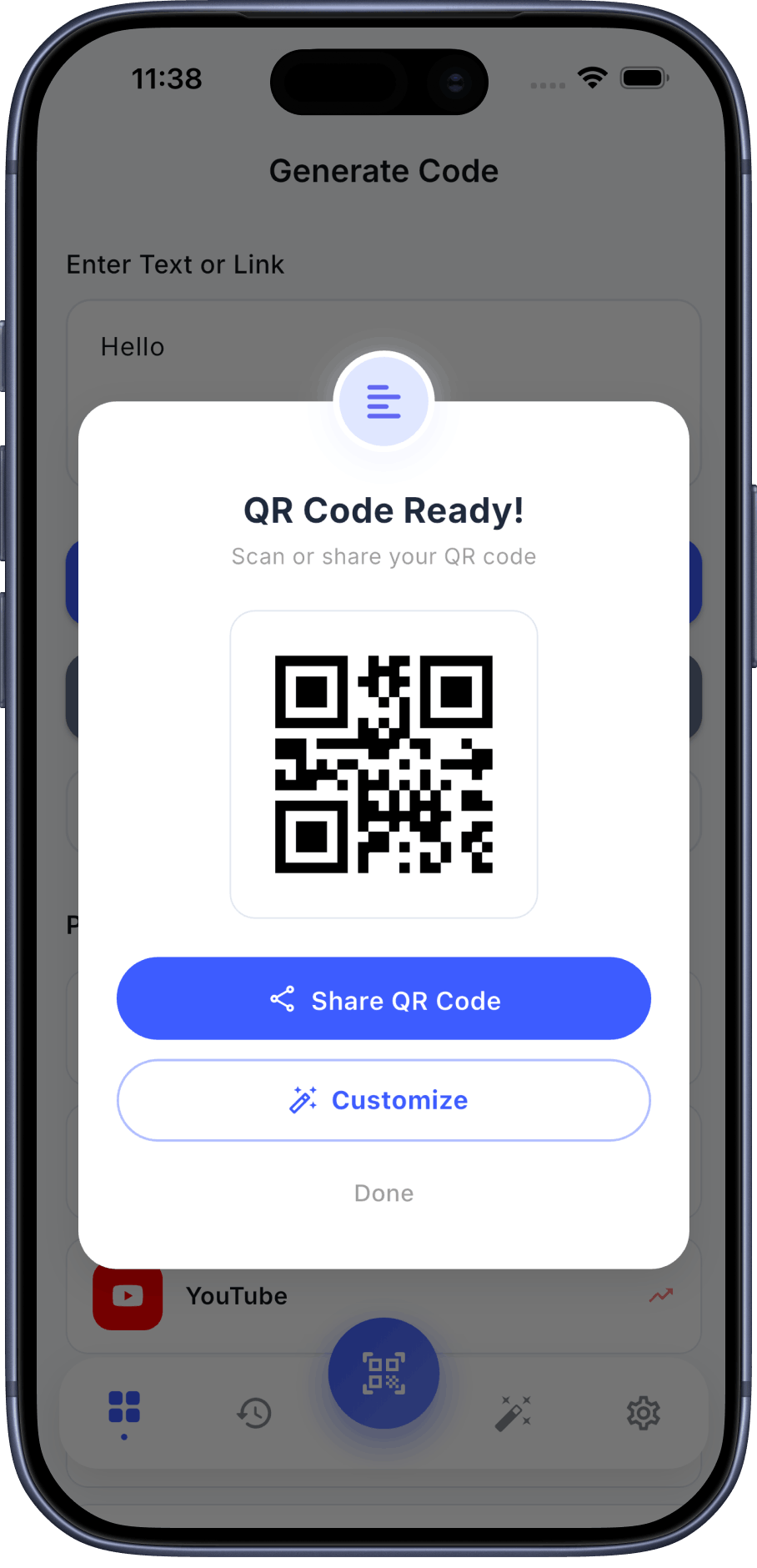
Keep the design easy to scan
Use clear contrast between the code and its background, and avoid adding decorative elements that make the pattern hard to distinguish. Test the exported image or printed copy rather than relying only on an on-screen preview. If it is difficult to scan, simplify the design or increase its size and test again.
Appearance does not verify a destination
A logo or visual style does not confirm where a code leads or prove that the destination is trustworthy. Check the destination yourself before distributing the code.
Explore QR Pulse
Check the current store listing for supported QR code types, design options, and availability on your device.


Frequently Asked Questions
Does adding a logo make a QR code safer?
No. Appearance does not verify where the code leads. Check the destination before opening or sharing it.
What logo size should I use?
No single logo size works for every code and output. Test the finished design at its actual size and simplify it if scanning is unreliable.
Are all QR Pulse design features free?
Feature availability and entitlements may vary by platform and plan. Check the current listing for your device.